






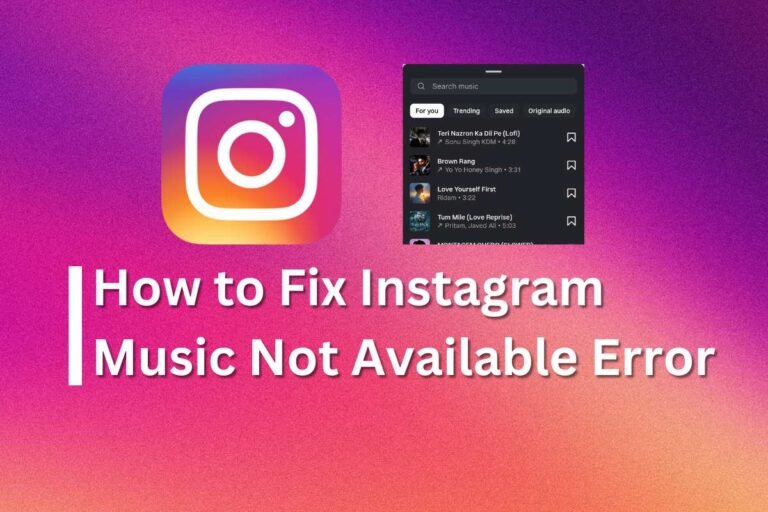
How to Fix Instagram Music Not Available Error 2026 Update
Hey guys! Welcome back to Technical Kachhua. Today we are talking about a very annoying problem that almost every Instagram user faces at least once. Yeah, I’m talking about that “Music is not available in your region” or “This song is currently unavailable” error.
I know how it feels when you spend 30 minutes editing a perfect Reel, and when you go to add your favorite song, Instagram says “Nope!” It just ruins the mood, right? But dont worry, because in this 2026 updated guide, I will show you some real ways to fix this. I have tried these methods myself and they actually work.
Why This Error Happens?
Before we jump into the fix, let’s understand why this happens in the first place. Usually, it’s not your phone’s fault.
Licensing Issues: Sometimes Instagram doesn’t have the right to play certain songs in your country.
App Bugs: Your Instagram app might be acting weird because of some cache files.
Account Type: If you have a Business account, some commercial songs are restricted for you.
Region Lock: You might be living in a place where that specific music isn’t released yet.
Now, lets move to the solutions.
1. Check for App Updates (The Basics)
I know it sounds simple, but you won’t believe how many people forget to update their apps. In 2026, Instagram releases updates almost every week. If you’re using an old version, some features like the Music Library might stop working correctly.
Go to your Play Store or App Store and search for Instagram. If you see an “Update” button, just click it. Once updated, restart your phone and check again. Most of the time, this simple step fixes the “music not showing” problem.
2. Switching to Personal or Creator Account
This is a very common reason. If you have a Business Account, Instagram restricts many popular songs because of copyright laws. Business accounts are meant for selling products, so they can only use “Royalty Free” music.
Here is how to change it:
Go to your Profile.
Tap on the three lines (Menu) in top right corner.
Go to Settings and Privacy.
Look for “Account Type and Tools.”
Tap on Switch to Personal Account or Creator Account.
I personally suggest switching to a Creator account because you get all the analytics plus all the latest music. It’s the best of both worlds!
3. Clear Cache (Only for Android)
If you are an Android user, this trick is a life saver. Sometimes the app collects too much “junk” data, which causes errors.
To clear cache:
Go to your Phone Settings.
Tap on Apps.
Find Instagram.
Go to Storage.
Click on Clear Cache.
Note: Don’t click on Clear Data unless you remember your password, because it will log you out.
4. Use a VPN (The Secret Hack)
If the song is really not available in your country, then a VPN is your best friend. In 2026, many songs are region-locked.
Download a good free VPN (like ProtonVPN or Turbo VPN) and connect to a server in the USA or UK. After connecting, force stop your Instagram app and open it again. Now try to search for the song. Boom! It should be there. Once you add the song to your story or reel, you can turn off the VPN.
5. Reinstall Instagram
If nothing else works, it’s time for the “Nuclear Option.” Uninstall the app completely. Wait for a minute, and then download it again from the store. This clears out all deep-level bugs that a simple cache clear can’t reach.

6. Report a Problem to Instagram
If you still see the “Music Not Available” error, maybe there is something wrong with your specific account.
Go to Settings > Help > Report a Problem.
Write something like: “Hey Instagram Team, I can’t access the music library on my account even though it’s available in my region. Please fix this.”
They usually take 24-48 hours to look into it, but it actually works sometimes.
Final Thoughts
So, these were the best ways to fix the Instagram music problem in 2026. Tech is always changing, so what worked last year might not work now, but these methods are currently the most effective ones.
Don’t let a small error stop you from making amazing content. Try these steps one by one and let me know in the comments which one worked for you. And if you have any other tech problems, you know where to come—Technical Kachhua is always here to help!
Thanks for reading, and keep sharing those amazing Reels!