






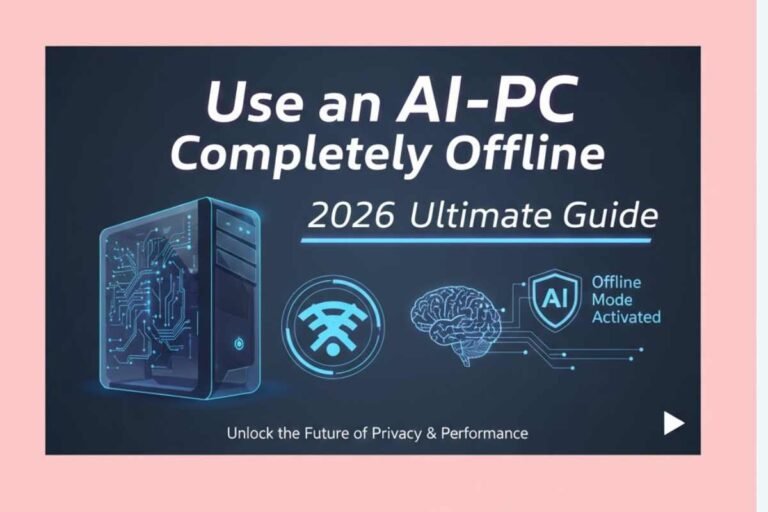
Use an AI-PC Completely Offline 2026 Ultimate Guide
Hey privacy advocates and tech enthusiasts! Welcome back to Technical Kachhua. In 2026, AI is everywhere. From our phones to our smart homes, it seems like every device wants to be “online” and “connected.” While this offers amazing features, it also brings a big question: What about my privacy? Can I use the power of AI without sending all my personal data to the cloud?
The answer is a resounding YES! Thanks to the new generation of AI PCs (with powerful NPUs) and operating systems like Windows 12, it is now possible to set up a completely offline AI workstation. This is the ultimate dream for writers, researchers, developers, or anyone who wants absolute control over their data.
Today, I am going to show you how to build and use an AI PC that is 100% disconnected from the internet, yet still super smart. Get ready to embrace true digital privacy!
Why Go Completely Offline with Your AI PC?
Ultimate Privacy: No data leaves your machine. Your thoughts, your code, your research—it all stays with you.
Security: Immune to online hacks, malware, and remote attacks.
Consistency: Your AI tools work the same way, every time, without relying on unstable internet or changing cloud APIs.
Freedom: Use AI tools on sensitive documents without fear of corporate AI models “learning” from your data.
Step 1: Choosing the Right Hardware (The Offline Foundation)
Not all AI PCs are created equal for offline use.
NPU Power: Look for a laptop or desktop with a strong NPU (Neural Processing Unit) with at least 45 TOPS. This is critical for running local LLMs and AI features fast. (e.g., Snapdragon X Elite, Intel Core Ultra 9, AMD Ryzen AI 9).
RAM: Minimum 32GB RAM, but 64GB is ideal. Local LLMs need a lot of memory to load.
Storage: A fast 1TB NVMe Gen 4 SSD for storing large AI models and your work.
No Integrated SIM/eSIM: Double-check that your chosen laptop doesn’t have an always-on cellular connection unless you physically disable it.
Step 2: The "Clean Install" of Windows 12 (Offline Edition)
This is where the privacy journey begins. You must perform a clean install without connecting to the internet.
Create a Bootable USB: Use the Windows 12 Media Creation Tool on another online PC to make a bootable USB.
Disconnect Internet: Physically unplug your Ethernet cable or turn off Wi-Fi before starting the installation.
Install Windows 12: During the OOBE (Out-of-Box Experience), when Windows 12 asks you to connect to the internet, look for the option “I don’t have internet” or bypass it using the
oobe\bypassnrotrick (refer to our previous clean install guide).Local Account: Create a Local User Account, not a Microsoft Account.
Step 3: Downloading Essential Offline AI Tools
You need to download these tools on an online PC and transfer them via USB.
Local LLM Frontend:
LM Studio: (Recommended) User-friendly GUI for downloading and running various LLMs.
Ollama: Command-line tool, but very powerful for running open-source models.
Open-Source LLMs:
Download quantized GGUF models from Hugging Face (e.g., Llama 3 8B, Mistral 7B). Look for models specifically optimized for NPUs.
Offline AI Image Generation:
Fooocus or ComfyUI: Great for running Stable Diffusion locally. Download the full installers.
Offline Document Editor:
LibreOffice: A free and powerful office suite that works 100% offline.
Step 4: Setting Up Your Offline AI Workstation
Once Windows 12 is installed and your tools are on the USB:
Transfer Files: Copy LM Studio, LLM models, and other tools from your USB to your offline AI PC.
Install Drivers: If Windows 12 didn’t install all NPU drivers during the clean install, you might need to download them from your laptop manufacturer’s website (on an online PC) and transfer them.
Install LLMs: Open LM Studio, select your downloaded LLM model, and load it. You will be able to chat with it instantly!
Disable All Networking:
Hardware Kill Switch: Some high-privacy laptops have a physical switch to disable Wi-Fi/Bluetooth. Use it!
Device Manager: Disable your Wi-Fi and Ethernet adapters in Device Manager.
Windows Services: Go to
services.mscand disable services like “WLAN AutoConfig” and “Network Location Awareness.”
Step 5: Using Your Offline AI PC (The Privacy Workflow)
AI Writing: Use your local LLM in LM Studio to brainstorm ideas, write drafts, summarize long texts, or even generate code snippets—all without internet.
AI Art: Use Fooocus to generate images based on your prompts.
Document Processing: Edit sensitive documents in LibreOffice. Use your local LLM to proofread them.
Data Analysis: Use local Python scripts with AI libraries (if installed offline) to analyze data.
Important Note: Updates
Remember, an offline PC won’t get security updates. So, it’s very important to:
Only open trusted files from trusted USBs (scanned on an online PC first).
Occasionally (once every 6-12 months), you might consider temporarily connecting to the internet to apply critical Windows updates and driver updates, then immediately disconnect.
Conclusion
Using an AI PC completely offline is not just possible in 2026, it’s a powerful statement about digital privacy. It gives you the full power of AI, but puts you, the user, in complete control. No data leaks, no tracking, just pure, unadulterated AI productivity.
If you are serious about privacy, this offline AI setup is the ultimate solution. Have you ever tried going completely offline with your PC? What challenges did you face? Share your thoughts below!