




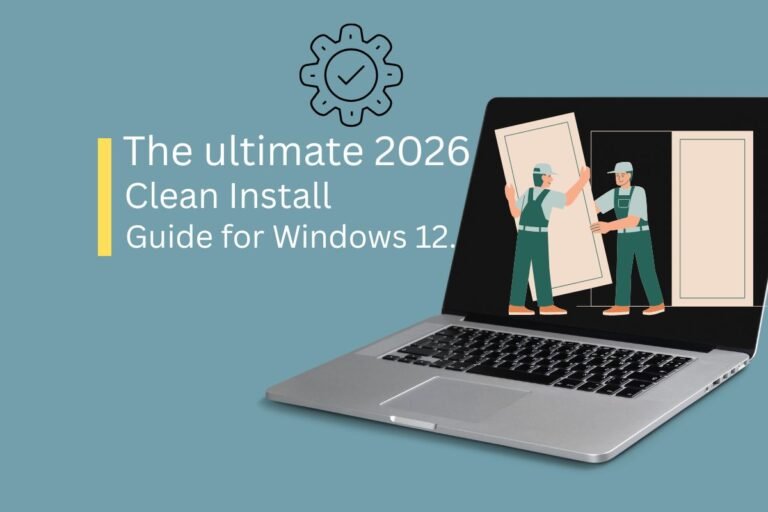
The Ultimate 2026 Clean Install Guide for Windows 12- 2026
Hey tech lovers! Welcome back to Technical Kachhua. Today we are talking about something that every pro user loves—a fresh start. It is early 2026, and Windows 12 has been out for a while. If you upgraded from Windows 11, you might be feeling some lag, bugs, or your AI features like Recall might be acting weird.
The best solution? A Clean Install. It is like giving your PC a deep bath. It removes all the junk, old registry files, and bloatware that companies hide in your system. In this guide, I will show you how to install Windows 12 the right way, specifically optimized for the new AI era.
Why You Need a Clean Install in 2026?
Windows 12 is very different. It relies heavily on the NPU and local AI processing. When you “Upgrade” from an old OS, sometimes the old drivers conflict with the new AI architecture. A clean install ensures that:
Your NPU works at 100% efficiency.
You get the maximum battery life on your laptop.
Your PC feels “Day 1” fast again.
You can set up your Privacy settings from scratch (very important for AI!).
Step 1: Pre-Installation Checklist
Don’t jump into it without a plan. You don’t want to lose your precious photos, right?
Backup Everything: Move your documents, photos, and game saves to an external SSD or cloud storage. Everything on your C: drive will be deleted.
Get a USB Drive: You need a USB 3.0 or 3.1 drive with at least 16GB space. (8GB used to be enough, but Windows 12 setup files are bigger now).
Check Activation: Make sure your Windows is linked to your Microsoft Account. This way, it will activate automatically after the install.
Step 2: Creating the Windows 12 Bootable USB
We will use the official Media Creation Tool from Microsoft.
Go to the official Microsoft download page.
Download the Windows 12 Installation Media tool.
Run the tool, select your language, and choose USB Flash Drive.
Wait for it to finish. In 2026, this takes about 10-15 minutes on a good internet connection.
Step 3: Booting from the USB
Now comes the “technical” part, but don’t worry, it’s easy.
Plug the USB into your PC and Restart.
Keep pressing the Boot Menu key (usually F12, F11, Esc, or F8 depending on your laptop brand).
Select your USB Drive from the list and hit Enter.
Step 4: The Installation Process (The "Clean" Way)
When the purple/blue setup screen appears, click Install Now.
Click “I don’t have a product key” (it will auto-activate later).
IMPORTANT: Choose “Custom: Install Windows only (advanced)”.
You will see a list of partitions. Delete all the partitions on your Drive 0 until you see “Unallocated Space.”
Select that space and click Next. Windows 12 will now start installing!
Step 5: The "OOBE" Setup (AI & Privacy Tips)
Once your PC restarts, you will be in the “Out of Box Experience” (OOBE). In 2026, Microsoft asks a lot of questions about AI.
Windows Recall: If you care about privacy, you can choose to disable this here.
Microsoft Account: Windows 12 really wants you to sign in. If you want a Local Account, you might need to use the
oobe\bypassnrotrick in the command prompt (Shift+F10).Privacy Settings: Turn OFF “Diagnostic Data” and “Tailored Experiences” to save some background processing power.
Step 6: Post-Installation (Optimizing for AI)
Your desktop is ready, but we aren’t done yet!
Windows Update: Go to Settings and run all updates. This is where your NPU drivers will be installed.
NPU Check: Open Task Manager and make sure you see the “NPU” graph. If not, check our previous blog on “NPU Driver Not Found.”
Debloat: Remove any “Partner Apps” like TikTok or Instagram that Microsoft pins to your Start Menu.
Conclusion
A clean install is the secret to a long-lasting PC. I do this every year to keep my system fresh. In 2026, with all the AI features running in the background, a clean setup is more important than ever. It might take 1-2 hours of your time, but your PC will thank you with amazing speed.
I hope this guide helped you! If you are stuck at any step or your BIOS is not showing the USB, just comment below. I’m always here to help my “Kachhua” family.
Thanks for reading Technical Kachhua. Stay clean, stay fast!