




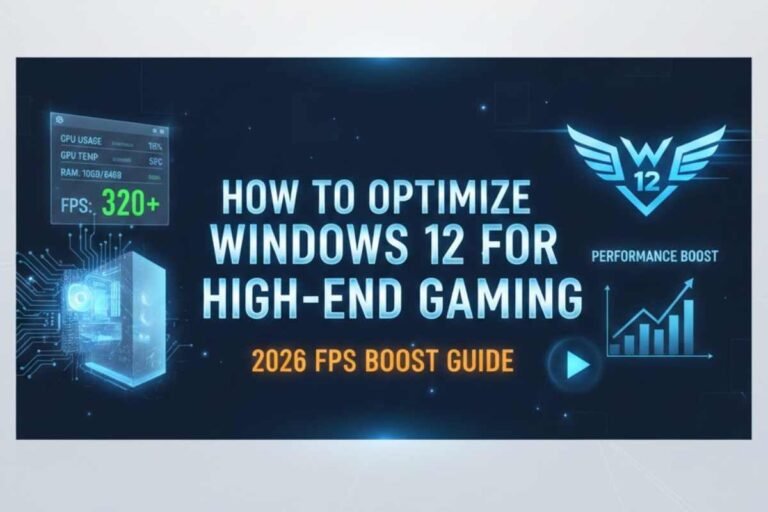
How to Optimize Windows 12 for High-End Gaming 2026 FPS Boost Guide
Hey fellow gamers! Welcome back to Technical Kachhua. So, you’ve got yourself a beast gaming PC—maybe a new RTX 5090 and an Intel Core i9, running the latest Windows 12. You expect buttery-smooth 4K gaming, right? But sometimes, even with top-tier hardware, you might be seeing strange FPS drops, stutters, or just not getting the performance you paid for.
The truth is, Windows 12 is built with a lot of “AI smarts” that are great for productivity, but not always for gaming. Many of these background AI features can actually steal performance from your games. Today, I am going to show you how to strip down Windows 12 and optimize it for pure, unadulterated high-end gaming. Let’s make your PC a gaming monster!
1. Disable "AI Bloatware" & Background Processes
Windows 12 comes with many AI features that run in the background. While cool, they consume CPU, RAM, and NPU cycles that your games need.
Windows Recall: This is the biggest offender. It takes screenshots constantly.
Go to Settings > Privacy & security > Recall & snapshots. Turn “Save snapshots” OFF.
Copilot+ Services: Copilot is always ready, but its background services can consume resources.
Right-click Taskbar > Taskbar settings. Turn Copilot (preview) OFF.
Windows Studio Effects: If you are not streaming, disable these.
Go to Settings > Bluetooth & devices > Cameras. Select your camera and turn off Automatic Framing and Eye Contact.
2. Turn Off "Virtualization-Based Security" (VBS)
VBS (including Core Isolation) is a security feature that uses virtualization to protect your system. It’s great for security, but it can eat up to 10-15% of your FPS in games.
How to disable:
Search for “Core isolation” in Windows 12 search.
Turn “Memory integrity” OFF. You might need to restart.
If this doesn’t fully disable VBS, you might need to go into your BIOS/UEFI settings and disable “Virtualization Technology” or “SVM Mode” (for AMD) / “Intel VT-d” (for Intel). Be careful here, only disable if you know what you are doing.
3. Optimize NPU for Gaming (or Turn it Off)
Your NPU is for AI, not usually for games directly. But some games with AI upscaling might use it. For most games, it’s just another chip waiting for tasks.
Check Drivers: Ensure your NPU drivers are updated (refer to our previous NPU driver guide!).
Game Mode: Windows 12’s Game Mode should automatically manage NPU priority.
If still lagging: Some users report turning off “AI Background Processing” in Settings > System > Power & battery > Energy Saver can free up NPU resources for games.
4. Graphics Driver & Settings (The Obvious, But Crucial)
This might sound basic, but it’s the most important for FPS.
Latest Drivers: Download the absolute latest GPU drivers from NVIDIA (GeForce Experience) or AMD (Adrenalin Software).
Game Ready Drivers: Always install the “Game Ready” drivers, not “Studio” drivers.
NVIDIA Control Panel / AMD Adrenalin:
Set “Image Scaling” (NVIDIA) or “Radeon Super Resolution” (AMD) to your preference.
Set “Power management mode” to “Prefer maximum performance”.
Turn “Low Latency Mode” to “Ultra” (NVIDIA).
5. Enable "Hardware-accelerated GPU Scheduling"
This Windows 12 feature helps your GPU manage its own memory more efficiently.
Go to Settings > System > Display > Graphics > Change default graphics settings.
Turn “Hardware-accelerated GPU scheduling” ON. Restart your PC.
6. Power Plan (Ultimate Performance)
Don’t let Windows 12 save power during gaming.
Search for “Choose a power plan” in Windows 12.
Select “Ultimate Performance”. If you don’t see it, open Command Prompt as Administrator and type:
powercfg -duplicatescheme e9a42b02-d5df-448d-aa00-000000000000Then go back to power plans and select it.
7. Clean Up Your Drive (AI Models Take Space!)
Games need fast storage. With local AI models (like LLMs) taking up huge space in 2026, ensure your gaming drive is clean.
Run Disk Cleanup (search in Windows 12).
Uninstall old games you don’t play.
Move large AI models to a secondary drive if possible.
Conclusion
Windows 12 is a powerful OS, but for high-end gaming, you need to be smart about what runs in the background. By disabling unnecessary AI features, optimizing your drivers, and tweaking your power settings, you can unlock the full potential of your gaming PC. Don’t let AI bloatware steal your precious FPS!
Did these tips help you get better performance? Tell me your highest FPS numbers in the comments below! I love hearing about your gaming victories.
Thanks for reading Technical Kachhua. Game on, and game fast!



Pingback: Use an AI-PC Completely Offline 2026 Ultimate Guide
Pingback: Best AI Tools for Video Editors on a Budget 2026 Guide