






Check if Your PC’s NPU (Neural Processing Unit) is Working
Hey tech lovers! Welcome back to Technical Kachhua. In 2026, everyone is talking about AI. You might have heard about “AI PCs” from brands like Intel, AMD, or Qualcomm. These new computers come with something called an NPU, which stands for Neural Processing Unit.
But here is the thing—most people buy an expensive AI laptop and they have no idea if the NPU is actually doing anything or if it’s just sitting there. I mean, we can see CPU and GPU usage easily, but what about NPU? Don’t worry, because today I am going to show you exactly how to find your NPU and check if it’s working on your Windows 11 or 12 system.
Wait, What Exactly is an NPU?
Before we check it, lets understand it in simple words. Think of your CPU as the brain that does everything. Your GPU (Graphics Card) handles gaming and heavy visuals. The NPU is like a specialist brain just for AI tasks.
It handles things like background blur in video calls, AI photo editing, and Windows Copilot features without putting load on your battery. So, if your NPU is working, your laptop battery will last longer and your PC will stay cool even when doing heavy AI work.
1. Check NPU Using Task Manager (The Easiest Way)
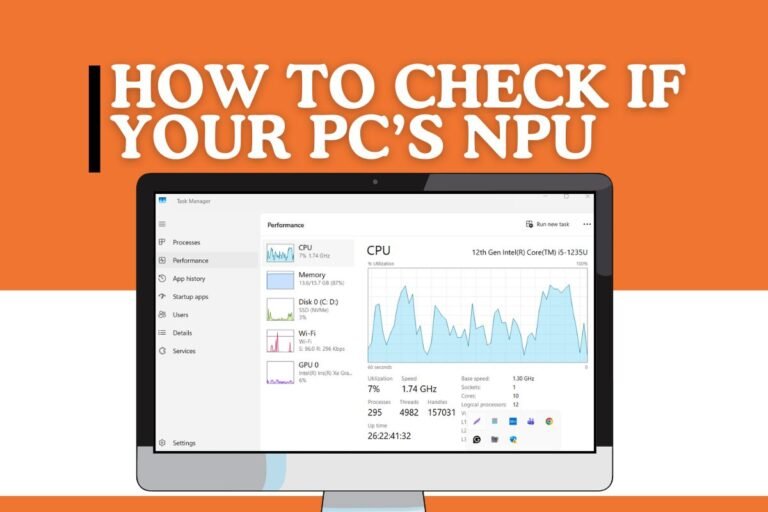
The fastest way to see if your NPU is even there is through the Task Manager. Windows has updated its system to show NPU performance just like CPU and RAM.
Step-by-Step:
Right-click on your Taskbar and select Task Manager (or press
Ctrl + Shift + Esc).Click on the Performance tab (it looks like a little graph icon on the left side).
Now, look at the list of hardware. You will see CPU, Memory, Disk, GPU, and… NPU!
If you see “NPU 0,” it means your processor has an AI engine.
To see if it’s working, try to open an AI app (like Windows Studio Effects or an AI image creator). You will see the percentage graph going up.
If you don’t see NPU here, dont panic yet. Maybe your drivers are old or your CPU doesn’t have one.
2. Using Device Manager
If Task Manager is not showing it, we need to check if the hardware is actually detected by the Windows system.
Right-click on the Start button and select Device Manager.
Look for a category called “Neural processors” or “Intel(R) AI Boost” or “AMD IPU Device.”
Click the small arrow to expand it.
If you see a device there and there is no “Yellow Triangle” on it, then your NPU is perfectly fine and ready to work.
3. How to "Force" the NPU to Work?
Sometimes the NPU shows 0% because Windows doesn’t use it for normal things like browsing Chrome or typing in Word. You need to run an AI task to see it in action.
Try this experiment:
Open your Camera app in Windows.
Look for Windows Studio Effects (like Eye Contact or Background Blur).
Turn on the blur effect.
Now, check your Task Manager again. You will see the NPU usage jump from 0% to maybe 20% or 30%. This proves your NPU is working and saving your CPU from getting hot!
4. Check NPU Version via Command Prompt (Pro Tip)
If you want to be a real “Technical Kachhua” expert, you can use the Command Prompt to find out more details.
Type
cmdin Windows search and open it as Administrator.Type this command:
pnputil /enum-devices /class NeuralProcessorHit Enter. It will show you the exact version and driver details of your AI chip.
5. What if My NPU is Not Showing?
If you bought an AI PC but can’t find the NPU, there are 3 main reasons:
Old Drivers: Go to your laptop manufacturer’s website (like Dell, HP, or ASUS) and download the latest “NPU Driver” or “Intel AI Boost Driver.”
Windows Update: Make sure you are on the latest version of Windows 11 (24H2 or later). Older Windows versions don’t know how to talk to an NPU.
BIOS Setting: Sometimes, the NPU is disabled in the BIOS settings to save power. You might need to go to BIOS and enable the “AI Engine” or “NPU” option.
Why is it Important to Check?
In 2026, many apps are becoming AI-only. If your NPU is not working, these apps will run on your CPU, which will make your laptop very slow and kill your battery in just 1 hour. Checking your NPU ensures you are getting the full performance you paid for!
Conclusion
So, that’s how you check your PC’s AI power. It’s not magic, it’s just a new chip that makes your life easier. If you found this guide helpful, let me know in the comments below. Is your NPU showing up in Task Manager? Tell me your laptop model too!
If you have any other tech problems, stay tuned to Technical Kachhua. We keep it simple, we keep it techy!
Thanks for reading, guys! See ya in the next one.





Pingback: Fix NPU Driver Not Found Errors in Windows -Working Fix 2026