






5 Best AI Chrome Extensions for Productivity on Windows 12
Hey everyone! Welcome back to Technical Kachhua. It is 2026, and Windows 12 has made our PCs smarter than ever with its built-in AI. But let’s be honest, most of our work still happens inside a web browser. Whether you are a student, a freelancer, or a 9-to-5 worker, your browser is like your digital office.
The good news is that the Chrome Web Store is now filled with incredible AI extensions that can talk to your Windows 12 NPU to make things super fast. I have been testing dozens of them for the last month, and today I am sharing the Top 5 AI Chrome Extensions that will literally double your productivity.
If you are not using these yet, you are working harder, not smarter! Let’s dive into the list.
1. MaxAI.me (Your All-in-One AI Sidekick)
If you only want to install one extension, make it this one. MaxAI.me is like having ChatGPT, Claude, and Gemini all inside your browser.
Why it’s great for Windows 12: On Windows 12, this extension is super snappy. You can highlight any text on any website and ask MaxAI to summarize it, rewrite it, or even explain it like you are five. I use it mostly to summarize long 50-page PDFs directly in the browser. It saves me so much reading time!
Key Features:
Works on any website (Gmail, LinkedIn, Twitter).
Can generate AI replies for emails.
Supports local AI processing if your NPU is enabled.
2. Grammarly (Now with AI "Genius" Mode)
We all know Grammarly for fixing spelling mistakes. But in 2026, it has become a full “Writing Partner.” It doesn’t just fix your grammar; it helps you change the “vibe” of your writing.
The Human Touch: Sometimes, I write an email and it sounds a bit rude. Grammarly AI suggests, “Hey, maybe say it like this?” and it makes me sound more professional. It’s also great for Windows 12 because it integrates with the system-wide clipboard, so your AI writing is always consistent.
Key Features:
AI co-writer for drafting blogs or reports.
Tone detector to make sure you sound right.
One-click citations for students.
3. Merlin (The Magic AI for Search)
Merlin is amazing because it changes how you search. Instead of clicking on 10 different links on Google or Bing, Merlin gives you a summary right on the search results page.
Why it’s a Productivity Beast: It can also summarize YouTube videos. Imagine you have a 30-minute tutorial but you only need the main steps. Merlin will give you a bullet-point list of the video content in 5 seconds. This has saved me hours when I was learning how to setup my local LLMs!
Key Features:
Summarizes Google/Bing search results.
Transcribes and summarizes YouTube videos.
Chat with any website.
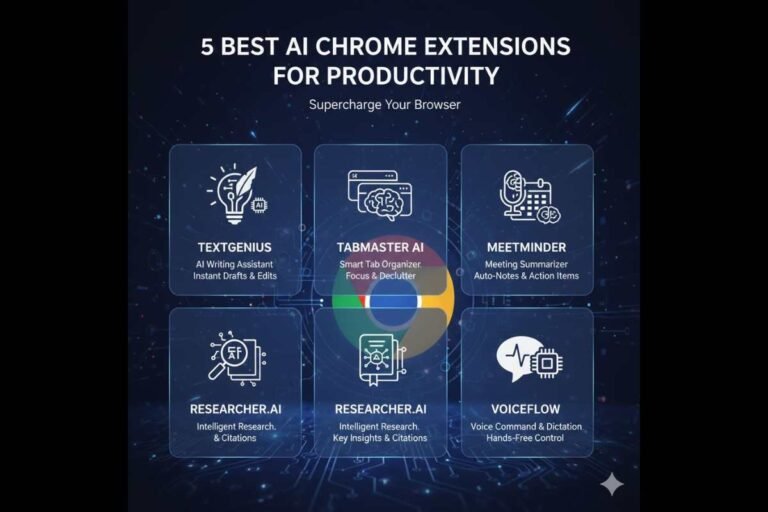
4. Wiseone (The Researcher's Dream)
If your work involves a lot of reading—like news, research papers, or tech blogs—Wiseone is for you. It helps you “Cross-check” information.
My Personal Experience: I use Wiseone when I am researching for my Technical Kachhua blogs. If a website says something confusing, Wiseone finds other sources to explain it better. It also simplifies complex jargon, which is very helpful when reading deep technical documents about Windows 12 architecture.
Key Features:
“Cross-check” feature to verify facts.
“Ask Anything” to chat with long articles.
Summarizes complex topics into simple words.
5. Otter.ai (The Meeting Master)
Since many of us do meetings in the browser (Google Meet, Zoom Web), Otter.ai is essential. It’s an AI that takes notes for you while you are talking.
Windows 12 Integration: Windows 12 has “Live Captions,” but Otter.ai goes further by creating a full summary with “Action Items.” It knows who said what and what needs to be done next. You can focus on the conversation and not worry about writing down every point.
Key Features:
Real-time transcription of browser calls.
Generates automated meeting summaries.
Shareable notes for the whole team.
How to Install and Manage These Extensions?
Installing them is easy. Just go to the Chrome Web Store, search for the names, and click “Add to Chrome.”
Pro Tip for Windows 12 Users: Because Windows 12 is very smart about power, it might try to “sleep” your browser extensions to save battery. If you want these extensions to work perfectly in the background, go to Settings > System > Power & Battery and make sure your browser is set to “Unrestricted” background power usage.
A Small Warning (Privacy Matters!)
AI extensions need to “read” the websites you visit to help you. In 2026, privacy is a big deal. I always suggest only installing extensions from trusted developers. Check their ratings and read what data they collect. For my most private work, I still prefer using the Local AI methods we discussed in previous blogs!
Conclusion
Productivity in 2026 is all about how well you can use the AI tools around you. These 5 extensions are the ones I use daily to keep Technical Kachhua running fast and smart. They help me write faster, research better, and manage my time like a pro.
Which one of these is your favorite? Or do you have another secret AI extension that I missed? Tell me in the comments below! I am always looking for new tools to try.
Thanks for reading, stay techy, and stay productive!







Pingback: How to Customize the New Windows 12 Start Menu 2026 Guide
Pingback: How to Optimize Windows 12 for High-End Gaming 2026 FPS